
Pandoc: How to Convert HTML to Markdown
Updated
Learn how to convert an HTML file to Markdown using Pandoc
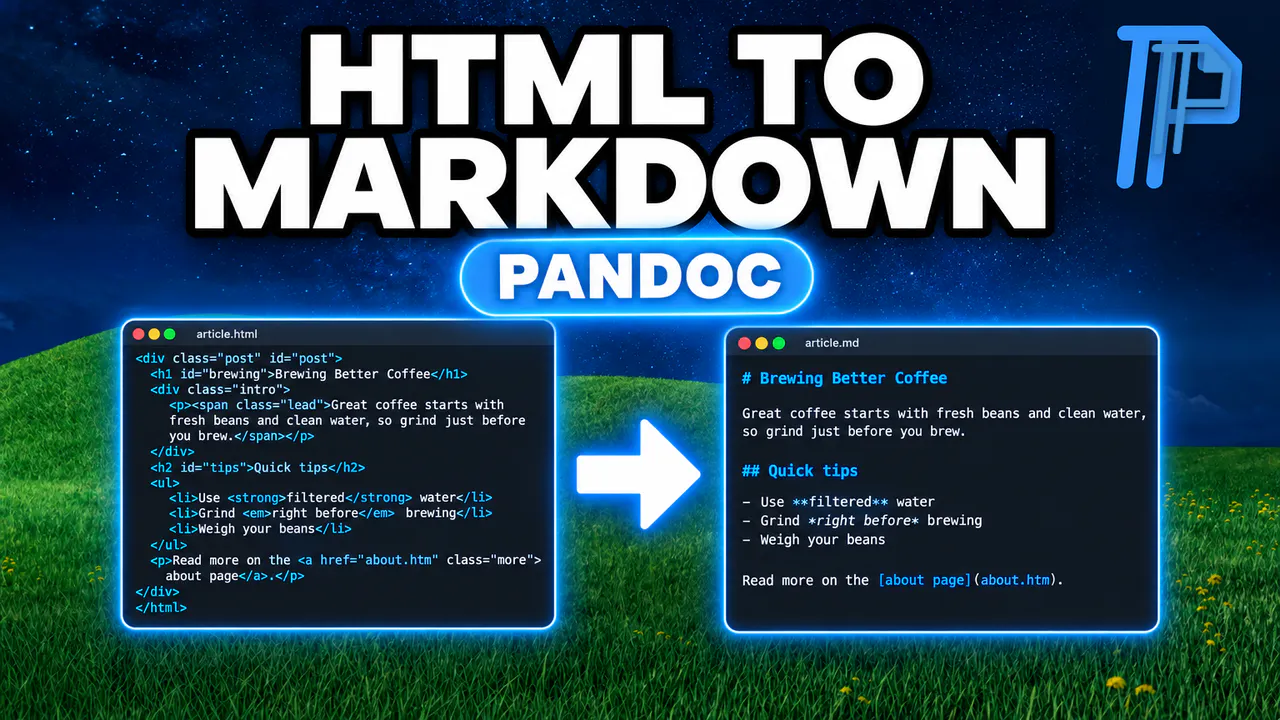
Install Pandoc
Before we start, make sure you have Homebrew installed on your computer and your HTML file ready in a folder. Install Pandoc with this command:
brew install pandoc
Convert the HTML File
First, open your terminal and navigate to the folder containing your HTML file. To convert it to Markdown, run this command:
pandoc -f html -t markdown input.html -o output.md
Just swap input.html with your actual filename, and output.md with the name you want for your Markdown file. The -f flag is the format you're converting from, and the -t flag is the format you're converting to. This finishes almost instantly, and Pandoc doesn't print anything when it works.
To check the result, open output.md. Pandoc keeps the div wrappers as ::: fences and adds curly brackets for IDs and classes, like {#id}.
Get Cleaner Markdown
For cleaner output, run this command instead:
pandoc -f html -t gfm-raw_html --wrap=none input.html -o output.md
The gfm format is GitHub-flavored Markdown, and -raw_html strips out the leftover HTML tags. The --wrap=none flag keeps each paragraph on a single line instead of wrapping it at 72 characters.
One more tip: Pandoc can guess the formats from your file extensions, so pandoc input.html -o output.md works just as well.