
Pandoc: How to Convert EPUB to PDF
Updated
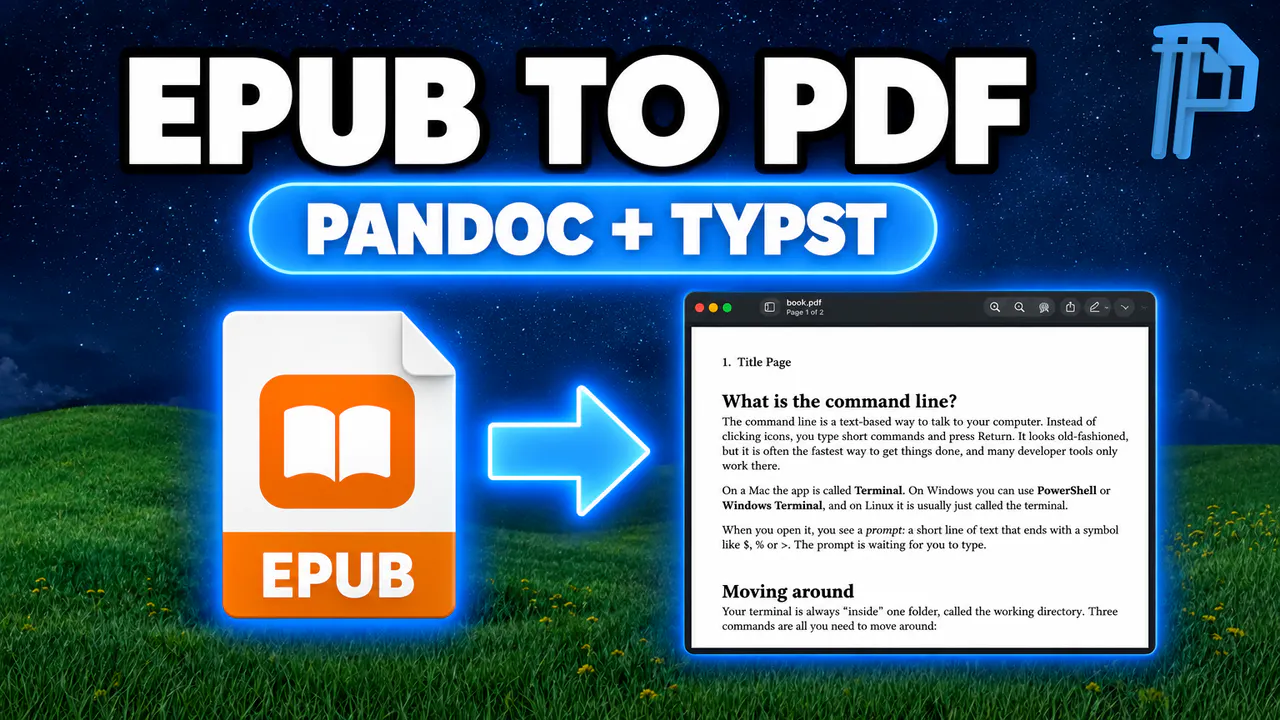
Learn how to convert an EPUB file to PDF using Pandoc and Typst
Install Pandoc and Typst
Before we start, make sure you have Homebrew installed on your computer and your EPUB file ready in a folder. Install both tools with this command:
brew install pandoc typst
Convert the EPUB to PDF
First, open your terminal and navigate to the folder containing your EPUB file. To convert it to a PDF, run this command:
pandoc input.epub --pdf-engine=typst -o output.pdf
Just swap input.epub with your actual filename, and output.pdf with the name you want for your PDF. The --pdf-engine=typst flag tells Pandoc to build the PDF with Typst. If your book has images, add --extract-media=./media so Pandoc unpacks them into a folder first.
Fix the Broken Link Error
Some EPUB files include a broken link in their table of contents, and Typst stops with label does not exist in the document and the name nav.xhtml_toc. To get around it, convert the EPUB to a Typst file first:
pandoc input.epub -o book.typ
Next, delete the broken link line. On a Mac you can do it with this command, or just open book.typ in a text editor and remove the line yourself:
sed -i '' '/nav.xhtml_toc/d' book.typ
Finally, compile it into a PDF:
typst compile book.typ book.pdf
To make sure everything worked, run open book.pdf.
One more tip: if Typst complains about a font you asked for, run typst fonts to see the exact names installed on your computer.