
Pandoc: How to Convert CSV to Markdown
Updated
Learn how to convert a CSV file to a Markdown table using Pandoc
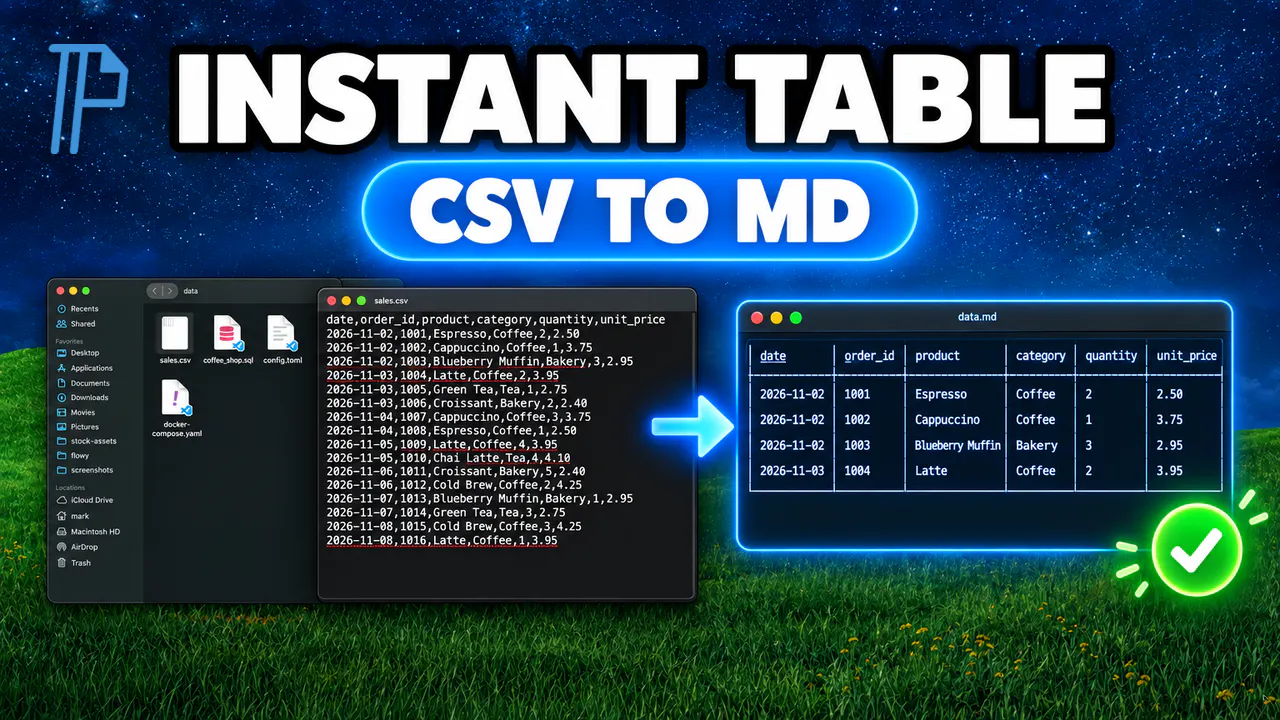
Install Pandoc
Before we start, make sure you have Homebrew installed on your computer and your CSV file ready in a folder. Install Pandoc with this command:
brew install pandoc
Convert the CSV File
First, open your terminal and navigate to the folder containing your CSV file. To turn it into a Markdown table, run this command:
pandoc -f csv -t gfm input.csv -o output.md
Just swap input.csv with your actual filename, and output.md with the name you want for your Markdown file. The -f csv flag is the format you're converting from, and -t gfm is the one you're converting to. The gfm format is GitHub-flavored Markdown, which gives you a pipe table that works on GitHub, Obsidian, Notion and most Markdown editors. This finishes almost instantly, and Pandoc doesn't print anything when it works.
To make sure everything worked, open output.md. Every row of the CSV is now a line in the table, with the header row on top.
One more tip: if your data is separated by tabs instead of commas, just swap -f csv for -f tsv. If you'd rather have Pandoc's own table style, use -t markdown instead of -t gfm.