
SoX: How to Fix Unsupported Audio Format
Updated
Learn how to fix the SoX unsupported audio format error by converting with FFmpeg
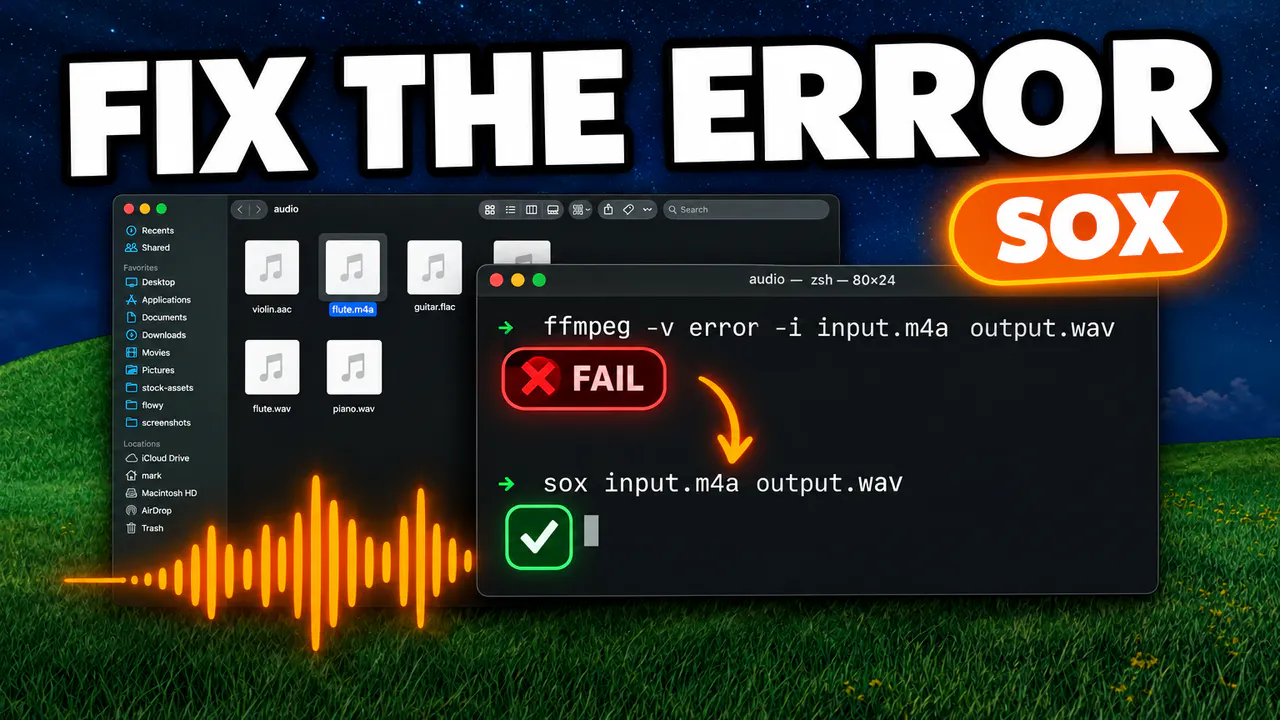
Install SoX and FFmpeg
Before we start, make sure you have Homebrew installed on your computer and an M4A file ready in a folder. Install both tools with this command:
brew install sox ffmpeg
Why the Error Happens
First, open your terminal and navigate to the folder that has your audio file. If you try to process an M4A file with SoX, like this:
sox input.m4a output.wav gain -6
you'll get this error: sox FAIL formats: no handler for file extension 'm4a'. That just means this version of SoX can't read that format. It handles formats like .wav, .mp3 and .flac, but not .m4a or .aac.
Convert to WAV First
To fix it, convert the file to WAV with FFmpeg:
ffmpeg -v error -i input.m4a input.wav
Just remember to replace input.m4a with your actual filename. The -i flag sets the input file, and -v error keeps FFmpeg quiet, so you won't see any output when it works. Now run your SoX command again, this time on the new WAV file:
sox input.wav output.wav gain -6
To make sure everything worked, run soxi output.wav to see the details of your new file.
If you're ever unsure what a file really is, run file input.m4a. It prints the real format, even when the extension says something else. You can also pipe the audio straight into SoX with ffmpeg -v error -i input.m4a -f wav - | sox -t wav - output.wav, though SoX may print a harmless Premature EOF warning.