
Pandoc: How to Convert PDF to Markdown
Updated
Learn how to convert a PDF to Markdown using Pandoc & pdftotext
Install Pandoc and Poppler
Before we start, make sure you have Homebrew installed on your computer and a PDF file ready in a folder. Pandoc can't read PDF files directly, so we'll also need Poppler, which gives us a tool called pdftotext. Install both with this command:
brew install pandoc poppler
Extract the Text
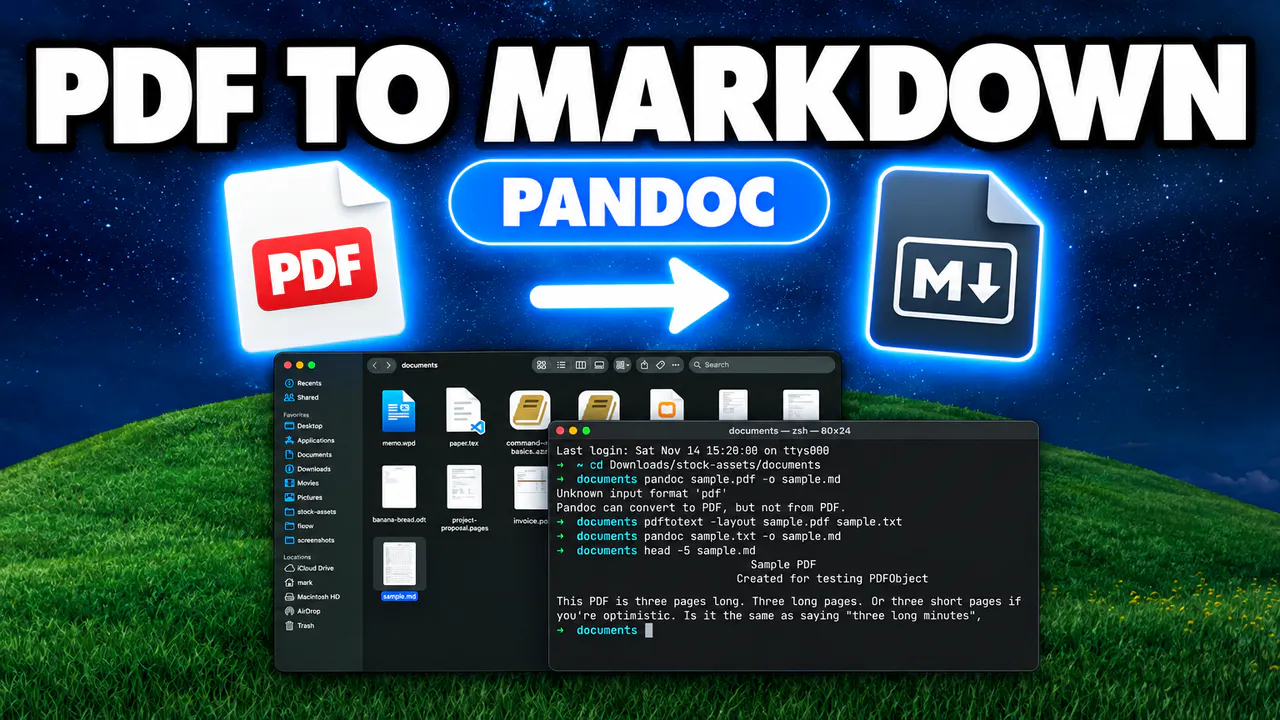
First, open your terminal and navigate to the folder that has your PDF. If you try to convert it straight away with pandoc input.pdf -o output.md, Pandoc replies with Pandoc can convert to PDF, but not from PDF. So let's pull the text out first by running this command:
pdftotext -layout input.pdf output.txt
Just remember to replace input.pdf with your actual filename. The -layout flag keeps the original spacing of the text.
Convert to Markdown
Now hand that text file to Pandoc:
pandoc output.txt -o output.md
This finishes almost instantly. To make sure everything worked, run head -5 output.md to see the first five lines of your new Markdown file. Keep in mind that a PDF has no real headings, so you may need to tidy up the Markdown by hand.
Pandoc wraps long lines by default. If you want each paragraph on a single line, just add --wrap=none to your pandoc command.